If you want to display your tournament on your website or blog, widgets are perfect to do so.
There are two kinds of widgets. The widget for tables helps you display the placement of teams in a group or in the final round. The widget for matches allows you to display pairings – either all at once or just certain pairings, e.g. only the ones of Group A or the ones of the preliminary round.
To get to widgets go to My Tournaments and click on the star symbol in the Tournament Links column.
Widget for tables
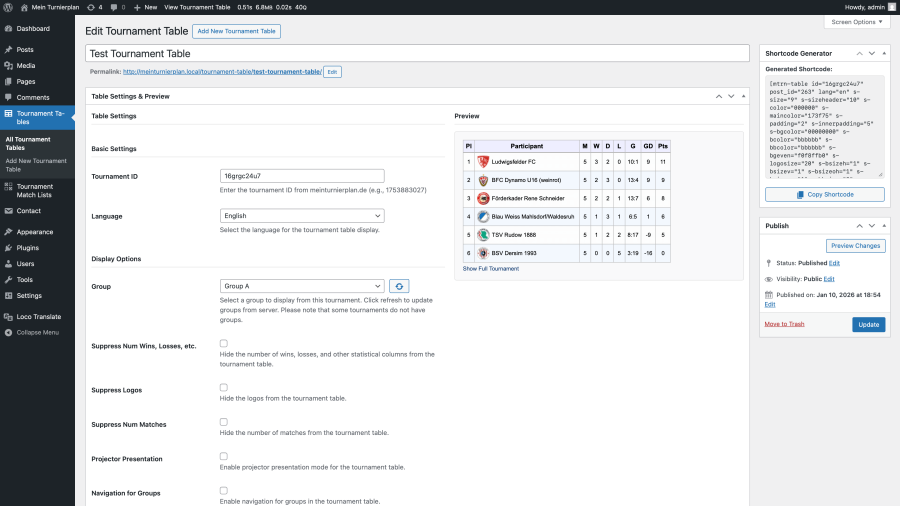
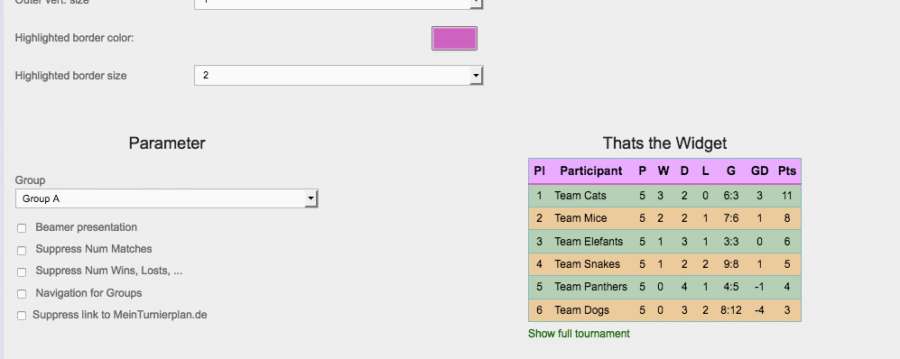
The widget for tables shows the ranking within a group or within the final round. With the box named Group on the left you can choose which table you want to be displayed.
Furthermore, you have the following options:
- Beamer presentation: If this box is activated the font will be bold which is helpful for the widget to be displayed through a projector.
- Suppress Num Matches: If this box is activated the number of matches for each team will be hidden.
- Suppress Num Wins, Losses, …: With this option you’ll be able to see the overall score but the number of wins, losses and so on will be hidden.
- Hide Logos: By activating this option the logos of participants can be hidden. The widget will appear more narrow and will load faster.
- Navigation for Groups: This option opens a navigation bar above the table that lets users navigate through all the groups. This way one widget can be used for all groups.
- Premium – Suppress link to MeinTurnierplan.de: Below the table there’s a link Show full tournament. By clicking it users are directed to the presentation page on MeinTurnierplan.de. If this option is activated the link will be hidden. This is only available if you have a premium account.
Depending on the tournament mode you might not have all the options available.
Widget for matches
The widget for matches displays a selection of matches or all matches.
You can choose what you want to be displayed under Group, Matchdays and Match number. Here, you can pick a group or matchday (groups can only be picked when there is a group phase in the tournament, matchdays can only be picked within leagues). You can also filter for participants but beware that when you select one participant the selection of a group will be ignored. Filtering for matchdays will ignore the filter for participants.
In the box Match number you can specify the exclusive display of matches with certain numbers. You can either enter a single number (e.g. number 17) so only this particular match will be displayed, or you can enter a range of matches (e.g. 4-9, in order to display matches 4, 5, 6, 7, 8 and 9).
Furthermore, you have the following options:
- Beamer presentation: If this box is activated the font will be bold which is helpful for the widget to be displayed through a projector.
- Suppress match number: Normally users can see which number each match has got, i.e. when it will be played in the order of all matches. If this box is activated the number of the match will be hidden.
- Suppress times: This option allows you to hide the start time of a match.
- Suppress field: This option is available for leagues and helps you hide the number of fields.
- Suppress group: This option allows you to hide the column that shows the group a match belongs to.
- Suppress extra time: In final rounds you can show that the scores were achieved after extra time. To hide that activate this option.
- Suppress penalties: In final rounds you can show that the scores were achieved after a penalty shootout. To hide that activate this option.
- Suppress headlines in final matches: Final rounds normally have titles like Semifinal 1 oder Third-place Play-off. They’re are displayed in an additional row above the match. To hide titles activate this option.
- Premium – Suppress link to MeinTurnierplan.de: Below the table there’s a link Display Whole Tournament. By clicking it users are directed to the presentation page on MeinTurnierplan.de. If this option is activated the link will be hidden. This is only available if you have a premium account.
Depending on the tournament mode you might not have all the options available.
Edit colors and sizes of widgets
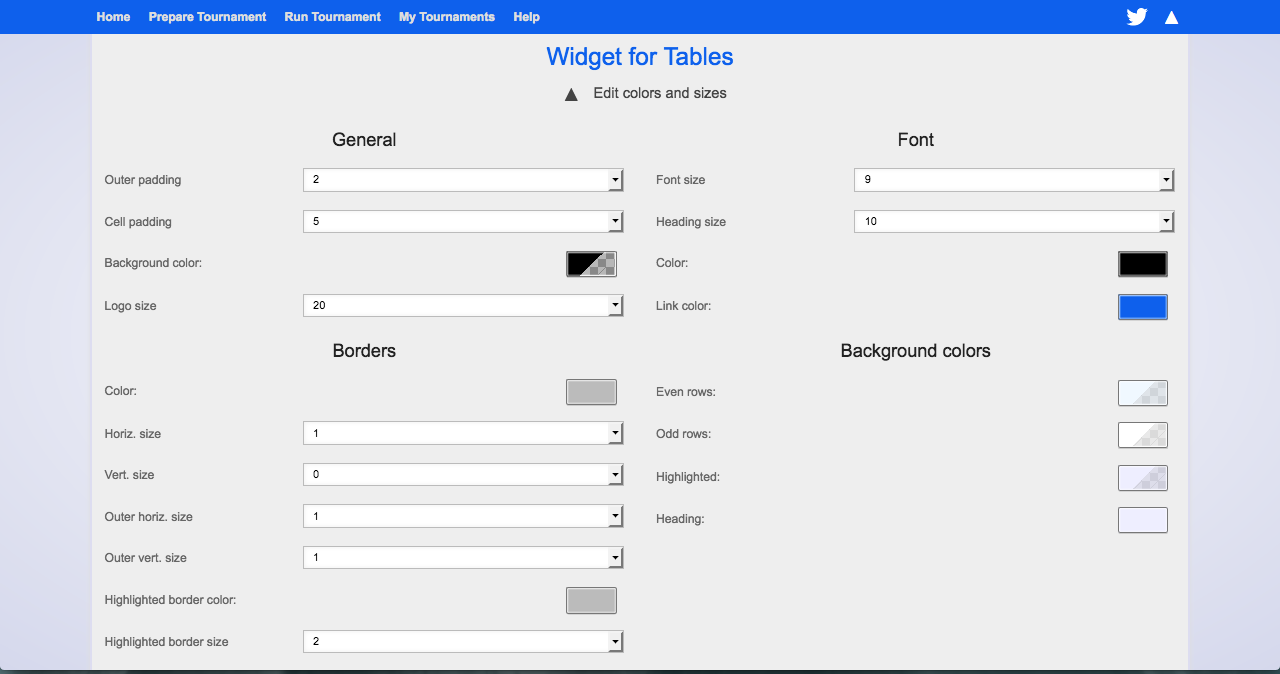
Widgets can be edited individually: you can adjust colors and sizes in the way you like. On the widget page pick the widget you want to work on and click on the little triangle next to Edit colors and sizes. The settings for colors and sizes will open now.
You can pick sizes, like the font size and line width. Also, you can decide about how big gaps should be, e.g. the distance between text and frames.
If you click on the colored sections a menu opens that allows you to pick colors.
The controllers help you to adjust the proportions of red, green and blue. You can also use the box right next to those. Here, you can enter proportions as numbers from 0 to 255.
For some colors, you can also regulate the transparency. It indicates how transparent a color can be. 0 means it can not be seen at all. 255 means that the color is completely covering. If the background of your website is multicolored you can use transparency to have it shine through slightly.
CLick Cancel to close the color window without applying the colors. Click Apply to have a preview of the color in the widget. You can see how the result is looking. If you’re not happy with it you can still click Cancel to get the original color back. Or click Okay and the color will be used for your widget. The window then closes automatically
Just play with this a little and see how colors can change your widget. It’s fun and in the end you’ll have the widget customized to fit perfectly into your website.
How to embed a widget into your website
Widgets can be embedded into your website as so-called iFrames. If you’re using a content management system the steps may differ, but for Joomla and WordPress we have created some instructions below. The procedure will probably be similar in other systems.
If you’ve got the outright access to your website’s HTML coding and can easily embed iFrames proceed as follows:
- Set up your widget as you wish to use it, including the adjustment of sizes and colors.
- Under settings for your widget, click the little triangle next to Widget Code. The code will be displayed.
- The upper widget code is the one for HTML. Just copy it and include it in your website right where you want the widget to appear.
- Done! Have a look at your site. The widget should be there now.
How to embed a widget into Joomla
If you’d like to use a widget on a website created with Joomla it first needs to be enabled. You’ll find instructions online.
How to embed a widget into WordPress
For WordPress users, we recommend our plugin for integrating tournament tables and match results. You can find it in the official WordPress directory under the name “MeinTurnierplan” or here: https://wordpress.org/plugins/meinturnierplan/
After installing and activating this plugin, you can integrate as many tournaments and game results as you like live on your site. Detailed instructions can be found directly in the official WordPress directory.