Contents
- Open the Presentation Page
- The Tournament Overview
- Deactivating automatic update of results
- Hiding ranking tables
- Show wins, draws and losses
- Full screen function for external monitors and projectors
- Sharing the Presentation Page via social media and as a message
- Filtering which matches are displayed
The Presentation Page is intended for spectators and tournament participants and is used to illustrate the matches, ranks and points in the tournament.
Open the Presentation Page
To open the Presentation Page, go to My Tournaments in the menu and click the screen icon for the tournament whose presentation page you want to open.
Alternatively, you can select the Presentation Page button on the Run Tourney page.
The Tournament Overview
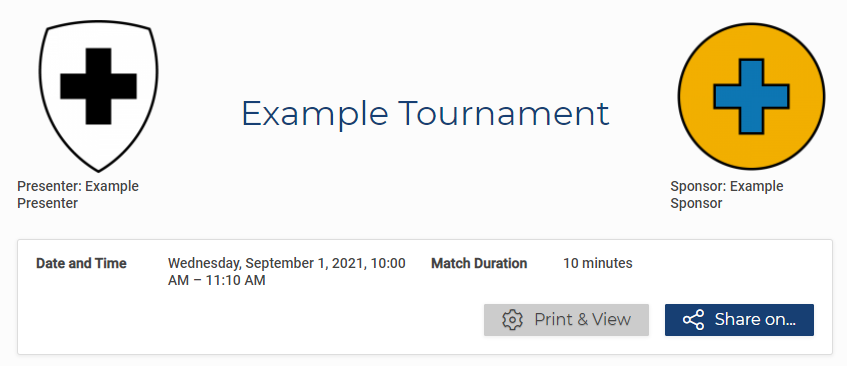
The title and general information about the tournament are displayed at the top of the tournament page. In addition to the date of the tournament and the duration of the match, you can also find information on the presenter, sponsor and connected tournaments.
Deactivating automatic update of results
The information on the Presentation Page is live and updated automatically. To switch off this function and to freeze the status of the Presentation Page, you can open the Print & View menu on the Presentation Page and change the Automatic Update enabled setting.
Hiding ranking tables
The Ranking Table is shown by default, and you can hide it, for example in non-competitive tournaments. To hide the Ranking Table, open the Print & View menu on the Presentation Page and use the button Show Ranking Tables.
To hide the rankings not only on one device, but always, also see Present Tournament without Rankings.
Show wins, draws and losses
You can display the number of wins, losses and draws in the Ranking Table.
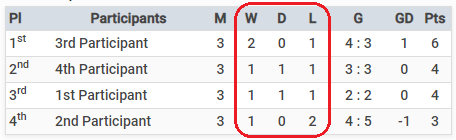
To do this, you can use the Print & View button on the Presentation Page to access a menu in which you can choose Show Wins, Draws and Losses.
Full screen function for external monitors and projectors
We offer two views intended for display on external monitors and projectors: Tables in Full Screen and the Stadium Display.
Tables in Full Screen shows the same data as the Presentation Page, but hides navigation elements, such as the page header or settings, so that only the really relevant match data is shown.
The Stadium Display is intended to showcase a small number of matches. It is optimized for readability even from a great distance.
There are several ways to open these views:
- Show Tables in Full Screen
You can use the Print & View menu to choose Display Tables in Full Screen. Full screen mode opens. The filters are adopted here from the normal Presentation Page. - Open Stadium Display with current filters
Via the Print & View menu, you can choose Show in Stadium Display. Stadium Display opens with all the matches with the current filter settings on the Presentation Page. - Showing the active matches in Stadium Display
Via the Print & View menu, you can choose Show Active Matches in Stadium Display. Stadium Display opens with the active matches. Other filters, however, are ignored. - Viewing a single match in Stadium Display
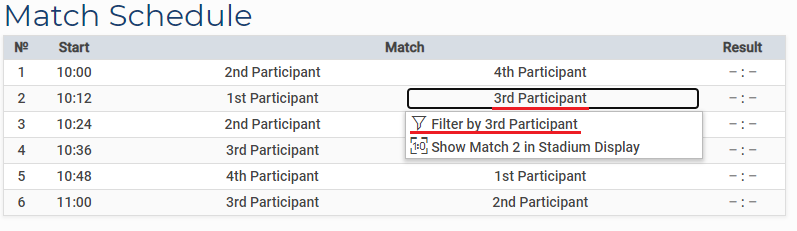
You can select a single match on the Match Board. A small menu will open in which you can select this match for Stadium Display.
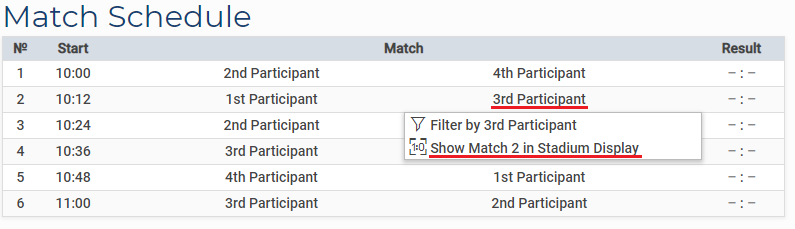
Stadium Display is limited to 16 matches by default, because legibility suffers when there are more matches. To remove this restriction, use the option Limit Stadium Display to 16 Matches in the Print & View menu.
Full screen mode and Stadium Display are only available on devices that allow full screen view.
Sharing the Presentation Page via social media and as a message
The Share on… button on the Presentation Page allows you to share your tournament via Facebook, Twitter, WhatsApp or by email. With Send to App, you can also use other sharing apps that support this option.
Filtering which matches are displayed
In many cases, spectators and participants are not interested in all of the matches and dates in a tournament. These users can specify criteria by using filter settings.
Via the Filter Matches drop-down menu, which you can find via the Match Board, you have an overview of all filters available for this tournament and can easily add and remove them.
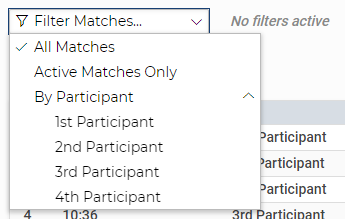
If they are relevant for the tournament, the following filters are available:
If they are relevant for the tournament, the following filters are available:
- Filter by preliminary round or final round
- Filter by date
- Filter by group
- Filter by league match day
- Filter by participant
- Filter by courts
- Filter by referee
- Filter active matches only
The Match Board is automatically adjusted according to your filter setting and shows all matches that meet the criteria in their order.
You also have the option to set or remove filters even more conveniently through the Match Board and the Ranking List. A menu can be opened by clicking or tapping on the corresponding data in the tables, which only allows you to filter for similar data. If you choose a participant, you can only filter by this participant or, if you choose a court, only by this court, etc.